Showing posts with label presentations. Show all posts

Monday, January 16, 2017

Tools and Tips for Creating Group Presentations for an Online Course or Distributed Projects

Creating presentations does not have to be a terrifying experience, and your presentation does not have to be long or detailed to be effective. The key is to be able to define your objective very clearly and to know exactly why you are making the presentation in the first place. What do you want to accomplish?

Then, as you organize your content, be sure to arrange it in a sequence that is logical and easy to follow. Keep your overall objectives in mind in each separate step.  If you are collaborating with your presentations, it may be necessary to develop a clear workflow so that your roles and responsibilities are clear, and also that you flow together.

Depending on the comfort levels of the team members, it can be possible to collaborate on a single video-enhanced presentation that you work on together. You can use a cloud-based application that allows each person to upload slides and record audio.

Or, if you want to do it the simplest possible way, you can use a cloud-based storage area such as Google Drive to upload your presentations and audio into a project folder. The individual contributions can be combined, or simply viewed sequentially.

Presentation Objective: Informational
This type of presentation involves providing definitions of topics, and it requires you to be able to place the concepts within a framework. Your presentation will have the following overall structure:
   
•    Main Idea / Primary Thesis
•    Definition of the concept
•    Definition of elements within the concept
•    Examples (at least two)
•    How it should work in the future

Presentation Objective: Recommendation for Plan of Action
This type of presentation requires you to both define your problem and also to formulate a strategy that is easy to follow and which is backed up by evidence and support.

•    Problem to be Solved
•    Evidence that it’s a problem
•    Why something has to be done
•    Consequences of doing nothing
•    Recommended Actions
  • Step 1
  • Step 2
  • Step 3
  • Step 4
•    Reality Check: How do we test to make sure it’s working?
•    Conclusions
   
Technical How-To with Free and Almost Free Video-Enhanced Online Presentations:

1.  Powerpoint with Audio: Each individual contributes to a single Powerpoint.

•    Each team member contributes content to a shared outline document
•    Final version of the shared outline is place into a PowerPoint presentation
•    Bullet points of what to cover in the script should be in the notes
•    Each individual records audio. Record directly onto the slide that you’ve been assigned.  Save as a different name and upload in a shared folder, perhaps in Google Drive or Dropbox. To record audio, use the recording function on your computer.

2.  Each person creates his / her own PowerPoint with Audio.
    The easiest approach is to create the PowerPoint and the audio separately.  You can record the audio on your phone using an app such as “Voice Recorder.” You can upload the recording to Google Drive.

•    Step 1:  Create a brief PowerPoint that covers your share of the team content
•    Step 2:  Record an audio that covers your content.
•    Step 3:  Upload both your PowerPoint and your Audio to Google Drive in a separate folder.
•    Step 4:  Share with your team members.
•    Step 5:  You can make a single PowerPoint presentation by combining the presentations. You can also combine the audio files by using Audacity or uploading them sequentially to Youtube.

3.  Each person makes a video presentation.
In this format or structure, you walk people through your presentation and audio.  Here are a few free or almost free software packages:

Recommended Free and Almost Free Presentation Software / Apps

Knovio: http:/www.knovio.com  -- Knovio Lite allows you to upload slides and then record audio. You can save them and then download the file. It is very simple to use.


Kizoahttps://www.kizoa.com – can easily create a presentation using photos – excellent for creating an online open house demo for real estate or discussing images


Emazehttp://www.emaze.com – very easy to use with many templates


Camstudiohttp://www.camstudio.org – good for creating screen captures and demos where you need to do things like point to certain features in a map.

Conclusion
As you can see by the number of helpful applications and the online collaboration and storage tools, there is absolutely no reason to be fearful about creating joint projects. The key is to develop a clear workflow and process that everyone on the team understands quite well. 

Monday, June 06, 2016

Kick-Start Your Voice for E-Learning / M-Learning that Truly Engages Your Audience

You may be surprised to learn that your voice is a key determinant of success in a webinar, presentation (live or recorded), or video-based e-learning. While most people think that having sharp graphics is the key, if you deliver your message in a monotone, mumble, and ramble, you'll lose your audience, no matter how great the visual presentation.

Here are tips for making your voice keep your audience's attention and communicate your message:

* Audio recording for a presentation
* Podcast or voice over
* Audio accompaniment for images, PowerPoint, maps, instructions, e-learning
* Story

The tips are based on voice coaches and experts Tracy Goodwin, VoiceBunny, etc.

https://vimeo.com/169169793

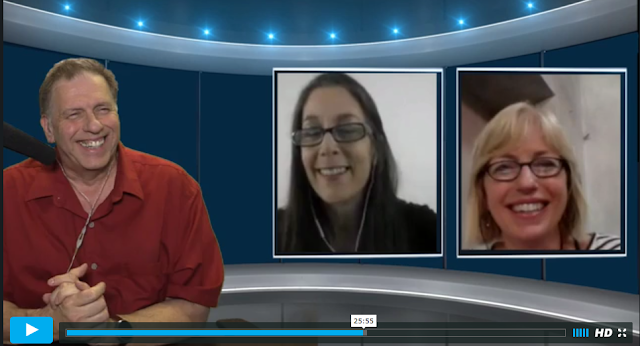
Interview with Tracy Goodwin, Voice Coach, on LifeEdge (hosted on Vimeo).

1.  Begin with confidence. Invite your audience to join you and communicate your enthusiasm. If it takes you 5 minutes to get "warmed up," it's too long. Your audience will have already abandoned you at the one-minute mark.

2.  Speak clearly. Don't mumble or start swallowing your words. Keep your voice strong and healthy. This may involve making sure that you're hydrated and that you are well rested.

3.  Avoid mispronunciations.  If you have doubts about how a word is pronounced, look it up in a dictionary, and practice. If you mispronounce technical terms and you're a technical expert, you have just undermined your credibility. (!)

4.  Avoid speaking in a monotone. Pause, create emphasis where appropriate, and communicate emotion. This ties to a theme that unites all the points: variety.

5.  Speak conversationally, and stay relaxed. This is especially important when you want your audience to feel comfortable and to trust your information and tips.

6.  Emphasize the key points. Know how to guide the audience to the most important part.  Pacing, pauses, tonal shading may all play a part.

7.  Talk to the audience, don't simply read. Do not simply read the same words that the audience will see on the screen.

8.  Personalize, if possible.  If appropriate, elaborate with brief experiential anecdotes. Jot down an outline or a full script of your anecdote so that you'll avoid rambling.

9.  Keep each point brief. Avoid digressions. If you are providing an accompaniment to a PowerPoint presentation, keep each point brief and stay focused. Less is definitely more.
10.  Vary pace, rhythm, tone, volume, breathing.  You may need a coach for this, but if you don't have the opportunity, you can at least practice recording yourself, and then listening. Do you put yourself to sleep? Do you find your mind wandering as you listen to yourself? If you bore yourself, imagine what you'll do to your audience.

11. Know your audience. Understand their expectations. If you don't, you run the risk of very negative reviews and feedback. I volunteered to read passages of a book by Wilkie Collins, and I thought I'd make it a lively, dramatic reading, replete with voices for the different characters (one of whom was totally unhinged, and murderously so). Well, for the one listener who wanted a bland, monotonous delivery, I was a disagreeable surprise. He/she wasted no time posting vicious reviews of my effort. The fact that several listeners applauded my performance did not really help. I obsessed about that negative review to the point that I stopped recording for almost a year!

There are several ways to record your audio:

Audacity:  This open source software program is by far the best option for creating excellent, easily modified and edited audio tracks. However, it does take a bit of time to understand how to convert to mp3 and also to use some of the features, such as noise elimination. http://www.audacityteam.org/

PowerPoint:  You can record your voice directly and embed the file in each slide. The result is a gargantuan file.

Record with your SmartPhone:  Android has a very easy to use Voice Recoder App. You can also then run the audio through speech to text and create a script.

Garageband: Garageband is easy to use and comes free on Macs and iPhones.

Links and Resources
Interview with voice expert Tracy Goodwin:
https://vimeo.com/169169793

Improve your Speaking Abilities: http://voicebunny.com/blog/voice-training-9-tips-improve-speaking-abilities/

Top 10 Voice Over Tips: https://www.videomaker.com/article/c4/14617-top-10-best-voice-over-tips

Sunday, March 09, 2014

Narrative Milestones Capture Hearts & Minds

Narrative milestones can be your secret to presentations that capture the hearts and minds of your audience for both technical and creative writing.
Have you ever listened to a presentation or a story and lost interest because it's just a jumble of information? Did you get the sense that the forest was being lost for the trees?
Or, even though the presentation was well organized and the skeleton / structure clearly visible, your mind still wandered off, utterly bored?
Chances are, the presentation was missing narrative milestones, which are critical in the telling of any kind of story, whether in creative writing, or in business presentations such as project summaries, training, sales, and investor conference calls.
What is a narrative milestone?
It is a temporal or topical "marker" within the text.
How is a milestone different than a subheading or a chapter title?
A narrative milestone is a trigger and a marker and it marks not just the passage and unfolding of information but also the sparking of emotional connection which keeps the reader engaged.
What is it good for?
It helps the reader or the listener develop categories or patterns for the creation of schema (or schemata) that will search as a framework for organizing information. It also helps the reader stay "hooked" or engaged in the text.
Where are milestones most effective in a narrative?
There should be a milestone at the beginning of the text. It does not have to be the same as a topic sentence, but should definitely communicate how/why a listener should care about what is being said. Then, there should be milestones at regular intervals within your text. If you're presenting it verbally or via video conference, include a mini-milestone every 30 to 45 seconds, and a major one every 2 minutes.  
What are the characteristics of an effective milestone?
An effective milestone is a great "hook" and combines conveys important facts while sparking an emotional connection.
Are milestones simply factual? 
No. A milestone can trigger emotions, and so are effective rhetorically in utilizing both pathos (emotions) and logos (logic/facts). Thus milestones can be effective in a persuasive, emotionally compelling document or presentation.
Narrative milestones will help you avoid that terrible sense that no one is listening to your presentation, or, worse, after reading it, they had absolutely no recall of the facts, nor did they have any sort of  emotional response.
Building in narrative milestones can help you create a very effective presentation or story, and you can convince your audience to actually remember and care about it.
(also posted this blog entry in LinkedIn).

Blog Archive